Google has published a help document called “Manage offers on your Business Profile.” If you manage Google Business Profiles, review how offers are handled for each location, including whether an offer is created through an Offers Post or may be discovered from a linked social media profile.
Offers are limited by region and language
Google Business Profile offers are available only in select regions and languages. That makes eligibility an important first check before you plan or publish an offer for a location.
For agencies and multi-location teams, keep the review at the location level. An offer available for one profile may not be available for another.
Review both ways offers can appear
Google’s guidance covers two sources for offers on a Business Profile:
An offer created through an Offers Post
A special offer Google discovers through a linked social media profile
This means your offer review should not stop after checking Posts. Where social profiles are linked, review the special offers being shared there too.
Use the new guidance in your profile checks
Add offer management to your regular Google Business Profile workflow:
Confirm whether offers are available in the location’s region and language.
Review Offers Posts published for that location.
Check linked social media profiles for special offers that may be discovered by Google.
Make sure the offer information you want customers to see is accurate for that location.
A consistent review process can help teams keep offer information aligned across the profiles they manage.
Review your location data alongside your local search visibility in Grid My Business.
AI search visibility for local businesses shows whether services such as ChatGPT and Google Gemini recommend your business when someone asks for a local provider.
Grid My Business now lets you scan those answers across your service area. You can see where your business appears, which competitors appear instead, what sources the AI cited, and how the results change over time.
The feature checks four AI services:
ChatGPT
Google Gemini
Google AI Mode
Google AI Overviews
This gives agencies and business owners a clear way to measure AI recommendations alongside their existing Google Maps rankings.
How AI search visibility for local businesses works
Enter a question a customer might ask, such as “Which dentist offers emergency appointments in Austin?” Then choose the scan area and AI services. Grid My Business checks the question across locations in that area.
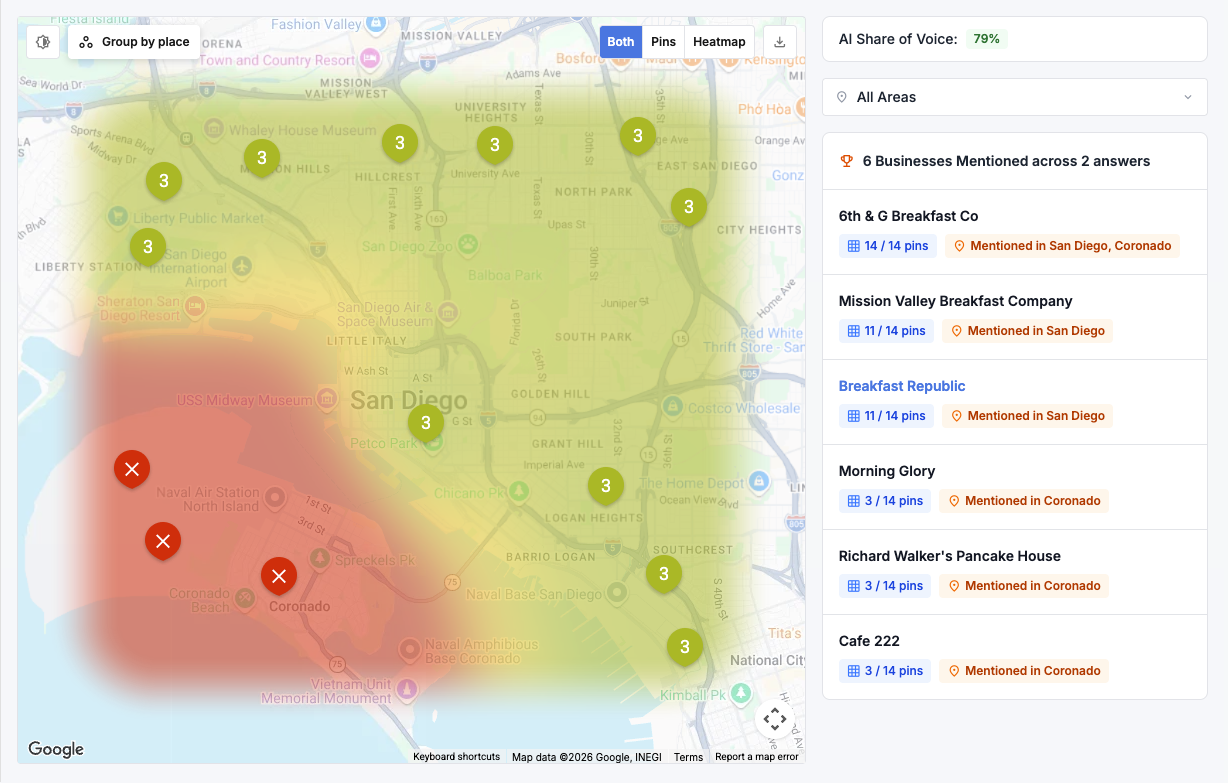
The completed map shows which pins mentioned your business, mentioned another business, or returned no business name. The results panel lists the businesses found and how many pins mentioned each one.
Here is a completed AI Search scan with the map and the businesses-mentioned panel:
An AI Search heatmap in Grid My Business. Pins show where the AI answer mentioned a business, and the panel lists each business found with the number of pins that mentioned it.
What the AI Search report shows
The report gives you several ways to review the results.
a) AI Share of Voice
AI Share of Voice is the percentage of answered pins that mentioned your business.
If an AI service answered at ten pins and mentioned your business at six of them, your AI Share of Voice is 60% for that scan. Pins without an answer are excluded from the calculation.
b) AI visibility score
The AI visibility score is a number from 0 to 100. It combines five factors:
How often your business was mentioned
How early your business appeared in the answer
How many selected AI services mentioned your business
Whether the AI cited your website
How the AI described your business
Use the score as a summary of the scan. To see why it is high or low, check which AI services mentioned you, whether your website appears in cited sources, and the gaps and next steps in the AI Search Insights panel.
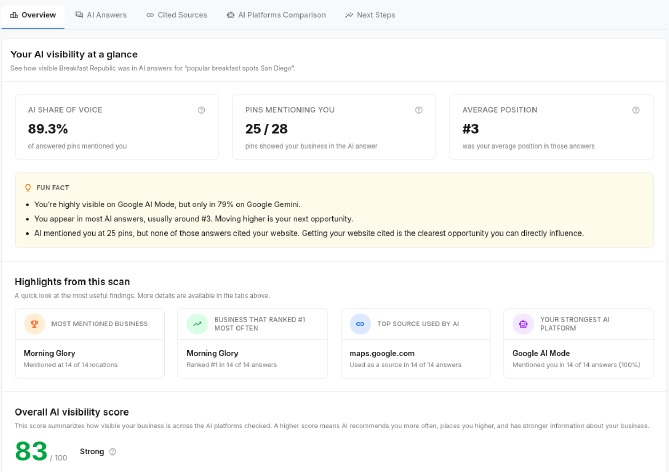
The Overview tab shows the score alongside the scan's Share of Voice and highlights:
The AI Search Overview tab: 89.3% AI Share of Voice, 25 of 28 pins mentioning the business, and an overall AI visibility score of 83/100.
c) Businesses mentioned in each area
For each area of the map, the report lists the businesses the AI named there. You can see where your client was mentioned and where a competitor was named instead.
It also gives you something concrete to show a client: the business names behind the score, area by area.
d) Cited sources
The report lists the websites cited by each AI service. Grid My Business labels them as your website, a competitor’s website, a directory, an editorial website, or user-generated content.
Use this list to see which sources appear in the answers. If a directory appears often, you can check whether the client’s listing on that directory is complete and accurate.
e) Competitor leaderboard
The competitor leaderboard shows which other businesses appeared during the scan. This answers a common client question: “If the AI did not recommend us, who did it recommend?”
The report ranks those competitors across the scan so you can see which businesses were mentioned most often.
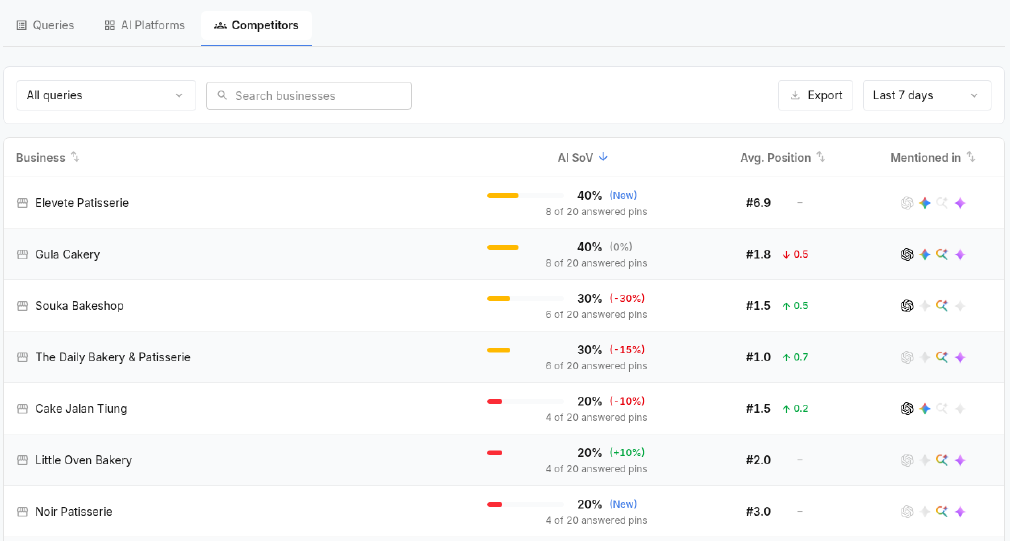
AI Tracker's Competitors tab shows the same kind of ranking across your tracked questions:
The Competitors tab in AI Tracker ranks each business by AI Share of Voice, with its average position and the AI services that mentioned it.
How the four AI services can differ
Each AI service produces its own results. A business may appear often in ChatGPT and less often in Gemini, so the report keeps each service separate.
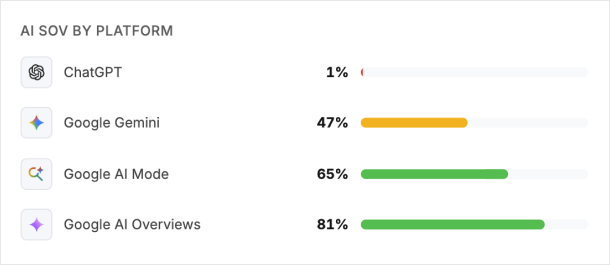
The AI SoV by Platform panel shows the share of voice for every selected service. The Platforms tab adds the number of answered pins, mentions, citations, average position, sentiment, competitors, and cited sources.
The platform panel makes those differences easy to compare:
The AI SoV by Platform panel, with share of voice for ChatGPT (1%), Google Gemini (47%), Google AI Mode (65%), and Google AI Overviews (81%).
How AI Tracker monitors results over time
An AI Search scan records one run. AI Tracker stores the questions and later runs so you can compare the results.
You can find AI Tracker inside the Local Ranking section of a business profile. It has three main tabs.
a) Queries
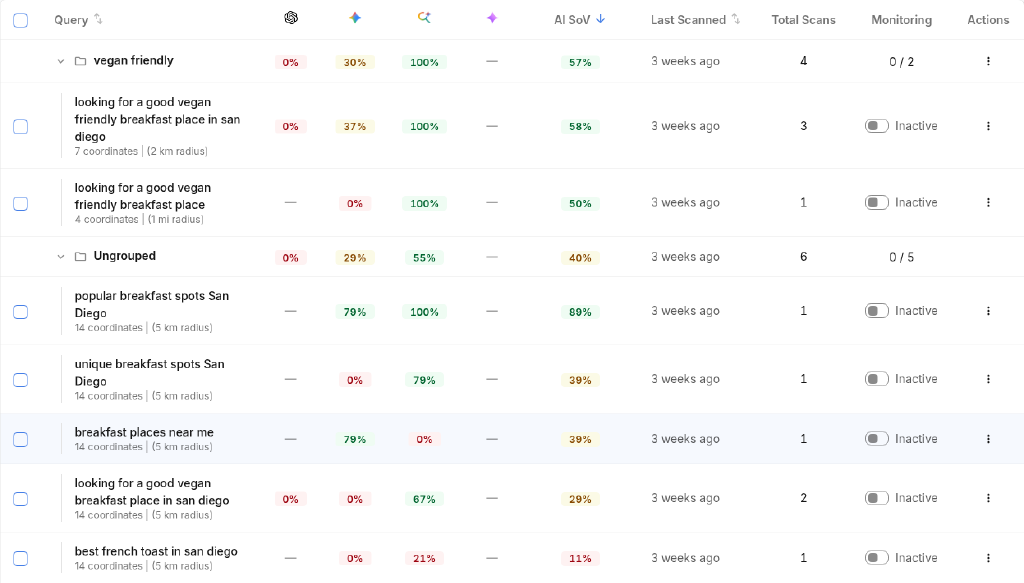
The Queries tab lists each question, its AI Share of Voice, the most recent scan date, the number of completed scans, and whether monitoring is active.
Open a question to review its earlier scans and see how its results changed.
You can also group questions into topics for different locations or services. For example, a dental agency could separate emergency dentistry questions from cosmetic dentistry questions.
b) Platforms
The Platforms tab compares the selected AI services across your scans. It shows where the business was mentioned, which websites were cited, and which competitors appeared.
c) Competitors
The Competitors tab lists every business mentioned during the selected period. Use it to see which competitors continue to appear across questions and AI services.
AI Tracker keeps the scan history and monitoring controls together:
The AI Tracker Queries tab, with questions grouped into topics, AI Share of Voice for each service, last scan date, total scans, and monitoring status.
How to track AI visibility with scheduled scans
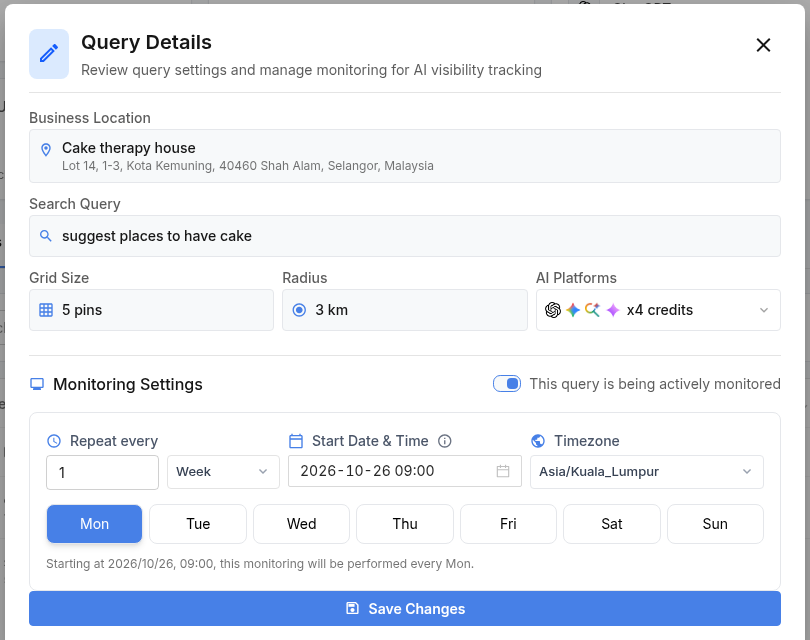
You can schedule a tracked question to run daily, weekly, or monthly. You also choose which AI services to include.
A simple agency setup is to track a small group of important questions once a week or once a month. This creates a consistent history without spending credits on questions the client does not use.
Monitoring settings sit in each question's Query Details window:
The Query Details window, with a weekly monitor set for Mondays at 09:00 across four AI services.
How agencies report AI search visibility for local businesses
Keep the report focused on what was checked and what the AI returned. For each question, include:
The question used in the scan
The area and AI services checked
The AI Share of Voice for each service
The competitors that appeared
The websites cited in the answers
The change from the previous scan
Avoid claiming that one website update caused a visibility change unless you have evidence to support that conclusion. The tracker shows what changed between scans, but it does not prove why the change happened.
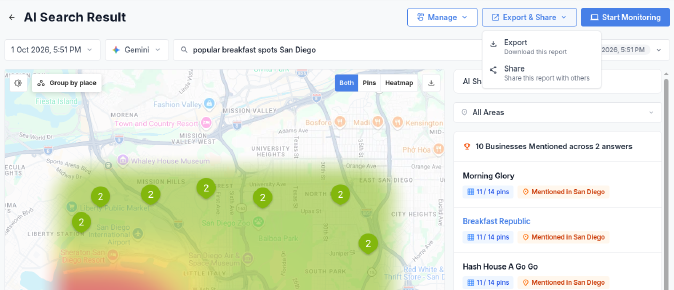
Grid My Business lets you export the scan map and full report or create a shareable link. Your company branding can be applied to the report before you send it to a client.
The Export & Share menu at the top of an AI Search result holds both options:
The Export & Share menu on an AI Search result, with options to download the report or share it with others.
What to check before running a scan
Review these settings before you start:
Question: Use a specific service and location question that a customer would ask.
Area: Select the service area you want to measure.
Custom pins: Add up to 24 pins if particular locations need to be checked.
AI services: Choose only the services you plan to review.
Language: Set the business profile language under Location Settings.
AI Search uses the language saved in the business profile. If no language is set, the scan runs in English.
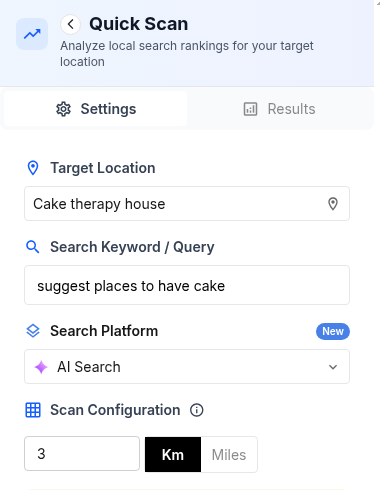
The scan settings panel holds the location, question, and platform choices:
The Quick Scan settings panel with a target location, the customer question, AI Search selected as the platform, and a 3 km scan configuration.
Wrapping Up
Grid My Business now gives you a direct way to measure AI search visibility for local businesses across ChatGPT, Gemini, Google AI Mode, and Google AI Overviews.
Start with a few customer questions and a manageable scan area. Review the answers, competitors, and cited sources, then schedule repeat scans for the questions you want to track.
Open a business profile in Grid My Business, go to Local Ranking, and select AI Tracker to run your first scan.
Frequently Asked Questions (FAQs)
Q: Is AI Tracker available on every Grid My Business plan?
A: AI Search is available to accounts with an active plan and uses the account’s scan credits.
Q: Can I add specific locations to an AI Search scan?
A: Yes. You can add up to 24 custom pins inside the selected scan area.
Q: Can I pause a scheduled question?
A: Yes. You can pause its monitor or change its AI services, frequency, run time, and timezone.
Q: Can I export an AI Search scan?
A: Yes. You can export the map or full report and create a shareable report link with your company branding.
Q: Can team members use AI Tracker?
A: Yes. AI Tracker is available to workspace members who can access the business profile.